RTU5024 Default Password: What It Is, How to Change It, How to Reset It
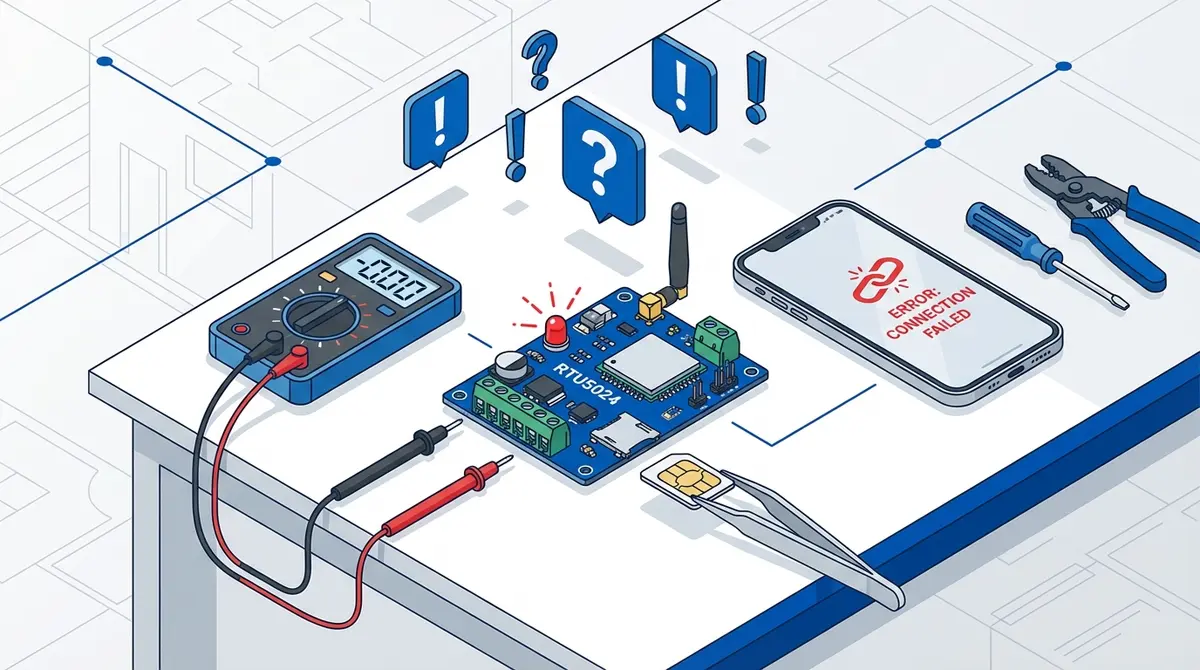
The RTU5024 ships with the default password 1234. This guide explains exactly how to change it to a custom four-digit password, how to factory-reset the module if you forgot your custom password, and why you must change the default before adding any authorized users.
At a glance
The RTU5024 default password is 1234. Change it immediately after first setup using the SMS command PWD{old}{new} — for example PWD12349872 changes the password from 1234 to 9872. If you forgot a custom password, hold the hardware RESET button while powering on to factory reset back to 1234.
Every RTU5024 ships with the same default password — and every untrained installer leaves it that way. That is a real security problem: anyone who knows the gate's SIM number and the default password can add themselves to the authorized user list. This guide covers the three things you need to know: what the default is, how to change it, and how to reset it if you forget your custom one.
What is the RTU5024 default password?
Default password: 1234
Four digits, numeric only. This is the same across every RTU5024 variant — 2G, 3G, 4G LTE, V2, and the rebranded BLIIoT, King Pigeon, and Huobei versions. After a factory reset the password also reverts to 1234.
How to change the default password
Send the password-change SMS from an authorized phone:
PWD{old-password}{new-password}Both halves must be exactly four digits. No spaces, no separators. Example: to change from default 1234 to 9872:
PWD12349872The module replies with Set password success. within a minute. Save the new password somewhere safe — there is no remote password recovery, only the hardware reset described below.
How to factory-reset the RTU5024 (forgot password)
If you can't remember your custom password and no authorized phone is available to set a new one, you must do a hardware factory reset. This wipes all authorized users and resets the password back to 1234.
- Power off the RTU5024 by disconnecting V+.
- Locate the small button on the PCB labelled SET or RESET (varies by firmware revision). It is typically near the SIM slot.
- Press and hold the button.
- While holding, reconnect power.
- Keep holding for 5 seconds after the SIGNAL LED comes on. Release.
- The module reboots. After 30-60 seconds, the password is back to
1234and the user table is empty.
You'll need to re-add all authorized users from scratch. See how to add a phone number to the RTU5024.
Why this matters for security
The RTU5024 password protects two operations:
- Adding or removing authorized phone numbers. Without the password, an attacker cannot add themselves to your gate's user list.
- Changing module settings like relay timing, notifications, and so on.
It does not protect the actual gate-open trigger — anyone whose phone number is in the user table can open the gate by calling the SIM, no password required. So the threat model is: an attacker who knows both your gate's SIM number and your password could SMS-add themselves to the user list and then open the gate at will. Default 1234 means the second half of that puzzle is solved for free.
Always change the default. Pick a four-digit number that isn't a birthday or PIN you use elsewhere.
FAQ
Can I use a 6-digit or alphanumeric password?
No. The RTU5024 is fixed at exactly four numeric digits. If you need a longer password, the Callny G202 PLUS accepts six digits.
Does the password reset also erase the SMS notification configuration?
Yes. A hardware factory reset wipes every customization including authorized users, notification numbers, and relay timing. You'll need to reconfigure everything from scratch.
Where is the RESET button on the RTU5024?
It's a small tactile button on the PCB, usually within a few centimetres of the SIM slot. On the v1.7 hardware it is labelled SET; on v2.0+ it is labelled RST. If you can't find it, take a photo of your unit's PCB and email [email protected] and I'll point it out.
Ready to ditch SMS commands?
GateOpener replaces cryptic codes with a clean interface. One app for every GSM gate module. No subscription, no account needed.
Related posts
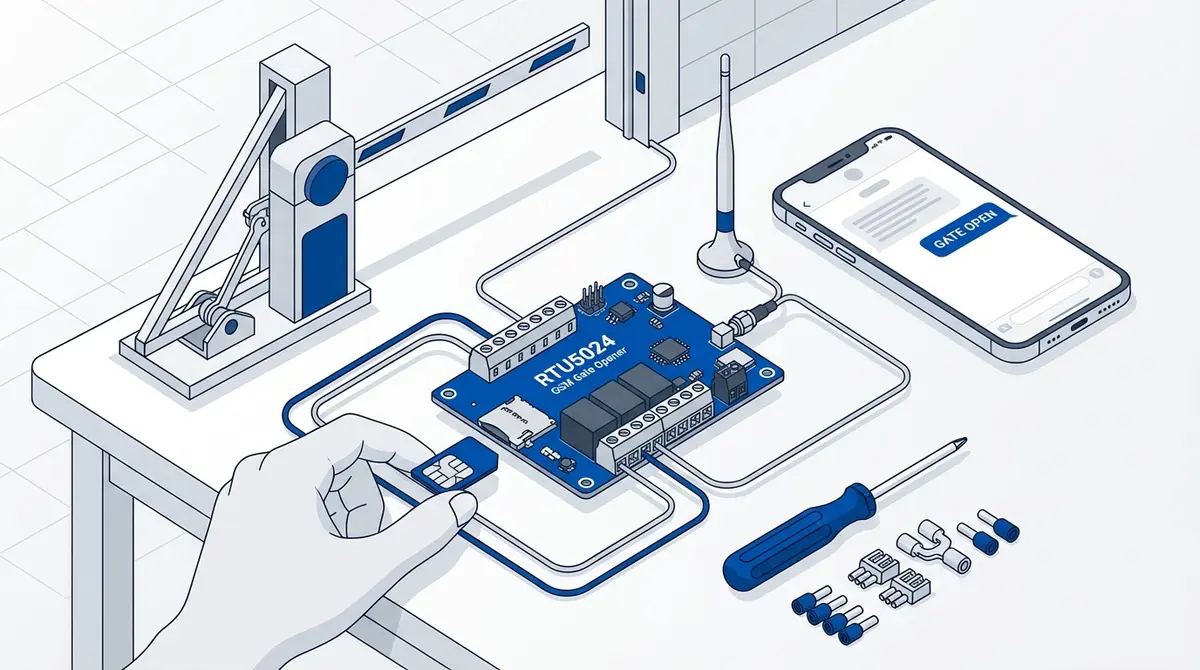
How to Set Up Your RTU5024 GSM Gate Opener
Complete RTU5024 setup guide: SIM card prep, relay wiring, password change, adding users, and testing. Covers all RTU5024 variants with step-by-step SMS commands.
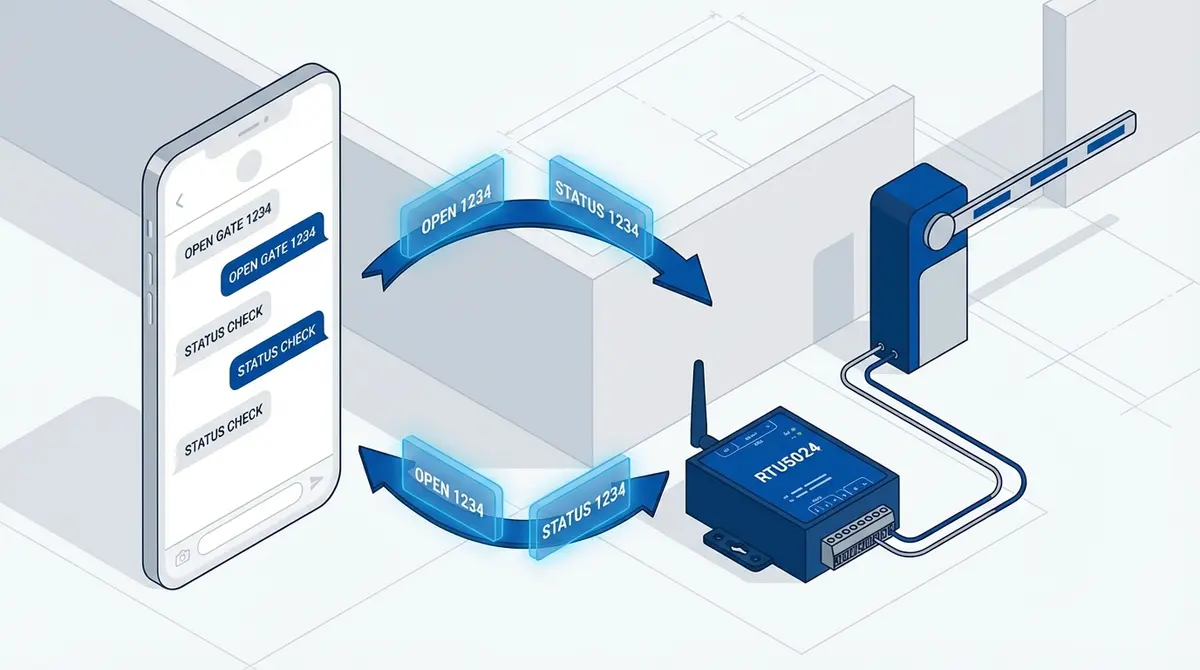
RTU5024 SMS Commands: The Complete Reference
Complete RTU5024 SMS command reference: password, users, relay, GOT timing, notifications, signal. Every command with syntax, examples, and responses.
RTU5024 Troubleshooting: Fix These 7 Common Problems
Fix 7 common RTU5024 problems: no network, Error password, no SMS response, users locked out, gate timing, missing notifications, module stopped working.