Callny G202 SMS Commands: The Complete Reference
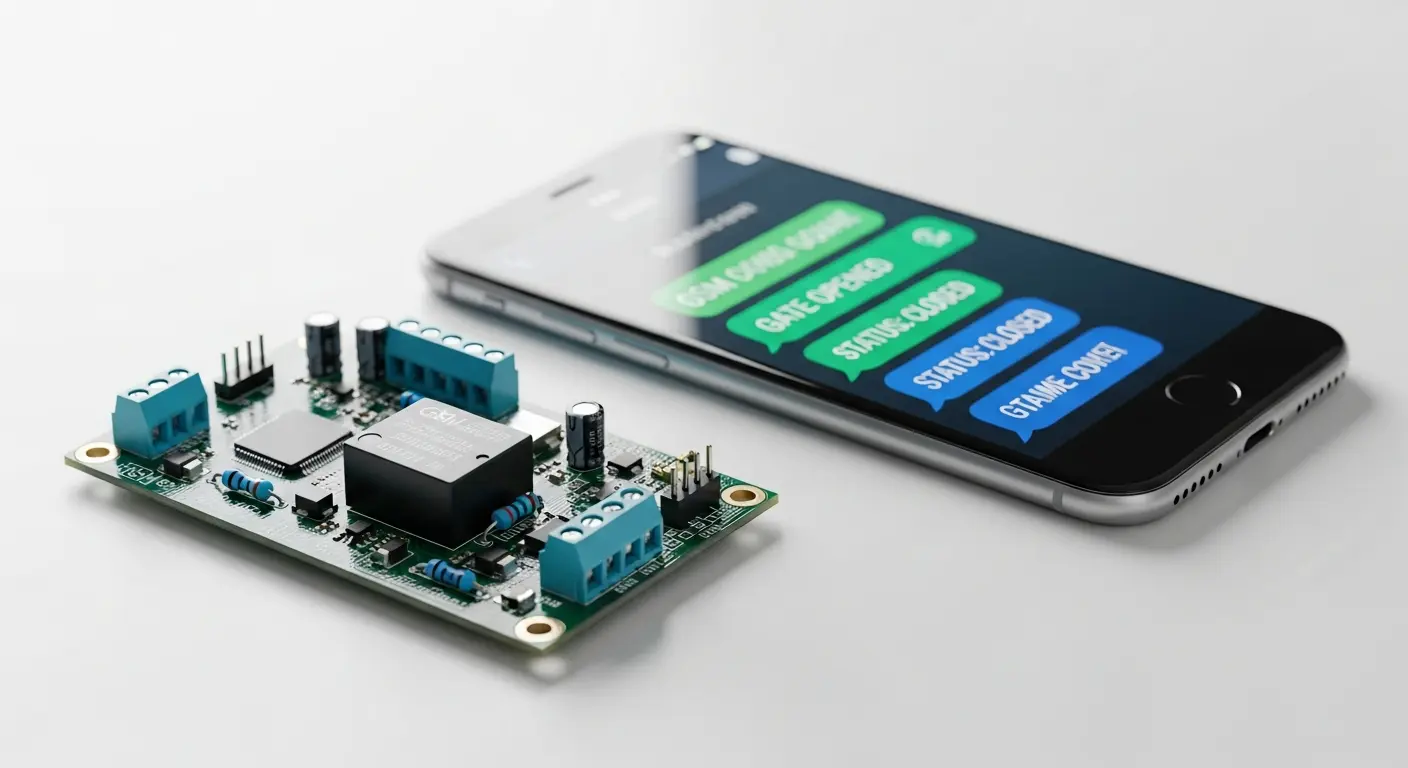
Every Callny G202 PLUS and G203 SMS command explained with exact syntax, real examples, expected responses, and troubleshooting. Covers password management, user roles (TOP/ADV/NOR), relay control, KPON keep-on mode, GOT timing with query, access control, push notifications, and signal diagnostics.
You just installed a Callny G202 PLUS and sent 1234ON to open the gate. Nothing happened. You tried 1234CC. Still nothing. The manual mentions hash signs but doesn't explain where they go. Turns out the Callny uses # delimiters between the password and the command — and if you skip even one, the module ignores you silently.
How Callny G202 SMS Commands Work
The Callny G202 PLUS (and its sibling the G203) processes SMS commands sent to the SIM card number inside the module. According to the GSM G202 reference manual, every command follows the same structure: your password, then a # delimiter, then the command code and any parameters, each separated by #. The default admin password is 1234.
Four rules apply to every command:
- 1.Commands must be uppercase. Sending
1234#on#does nothing. The Callny only processes capital letters. - 2.Use # delimiters between every part. The format is
{password}#{COMMAND}#{params}#. Unlike the RTU5024 where the password runs directly into the command, the Callny requires a#after the password. - 3.Passwords can be alphanumeric. According to the Callny G202 PLUS user manual, the module supports alphanumeric passwords up to 12 characters, a significant upgrade over the RTU5024's 4-digit-only restriction.
- 4.No spaces. The entire command is one continuous string. Auto-correct and predictive text on your phone can insert spaces or change casing — turn them off.
Password Commands
How Do I Change the Callny Admin Password?
To change the password, send your current password followed by the PWD command with the new password entered twice for confirmation. The new password can be 4-12 characters, letters and numbers.
Command: {password}#PWD{new}#PWD{new}#
1234#PWD5678#PWD5678#Response: New Password: 5678
Only the super admin (TOP) can change the admin password. If you forget it, press and hold the hardware RESET button for 10 seconds while powered on. This restores 1234 but erases all settings and users.
How Do I Change the Normal User Password? (G203 only)
The G203 has a separate password for normal (NOR) users. Default is 0000.
Command: {password}#NORPWD{new}#NORPWD{new}#
1234#NORPWD1111#NORPWD1111#Response: Normal user password changed
User Management Commands
How Do I Add an Admin User?
The Callny supports up to 999 user slots. The first user you add automatically becomes the super admin (TOP). Subsequent users added with TEL become admin (ADV) users. Use DEF for auto-assigned slot IDs or specify a slot manually.
Auto-assign slot (recommended):
Command: {password}#TEL{phone}#DEF#
1234#TEL+31612345678#DEF#Response: System auto assign Admin User ID: 002, TEL:+31612345678 (ADV)
Specific slot:
Command: {password}#TEL{phone}#{slot}#
1234#TEL+31612345678#001#Response: Admin User ID:001, TEL:+31612345678
How Do I Add a Normal User? (G203 only)
Normal users (NOR) can only call to open the gate. They cannot manage other users or change settings. According to Callny G203 documentation, the three user roles (TOP, ADV, NOR) provide granular permission control that is unique among sub-EUR 30 gate opener modules.
Command: {password}#NORTEL{phone}#DEF#
1234#NORTEL+31612345678#DEF#Response: System auto assign Normal User ID:003, TEL:+31612345678 (NOR)
How Do I Query Users?
Query by slot:
Command: {password}#TEL{slot}?
1234#TEL001?Response: User ID:001, TEL:+31... (TOP)
Query by phone:
Command: {password}#QRYTEL{phone}?
1234#QRYTEL+31612345678?Response: User ID:001, TEL:+31... (TOP)
List all users:
Command: {password}#TELALL?
1234#TELALL?Response: Page 1 of 1 — 1. User ID: 001, TEL: +31... (TOP)
How Do I Delete a User?
Two options: delete by slot ID, or delete by phone number. The super admin (TOP) cannot be deleted.
Delete by slot:
Command: {password}#TEL#{slot}#
1234#TEL#002#Response: User ID:002 deleted
Delete by phone:
Command: {password}#DELTEL#{phone}#
1234#DELTEL#+31612345678#Response: TEL:+31612345678 deleted
How Do I Change My Own Phone Number?
Command: {password}#MODTEL#{newphone}#{newphone}#
1234#MODTEL#+31699999999#+31699999999#Response: Phone number modified
Access Control Commands
How Do I Set the Access Mode?
The Callny has two modes, plus a query command to check which one is active — a feature the RTU5024 lacks.
Authorized users only (default, recommended):
1234#AU#Response: Access mode: Authorized
Allow all callers (security risk):
1234#AA#Response: Access mode: All
Query current mode:
1234#AC?Response: Access mode: AU or Access mode: AA
Relay Commands
How Do I Open the Gate via SMS?
Most users trigger the relay by calling (free, no SMS cost). But you can also control it via SMS. The Callny has three relay modes: pulse (timed), keep-on, and off.
Relay ON (pulse):
1234#ON#Response: Relay ON, Delay time Ts (5)
Relay ON (keep on):
1234#KPON#Response: Relay ON (Keep)
Relay OFF:
1234#OFF#Response: Relay OFF
The KPON command keeps the relay permanently on until you send OFF. This is useful for holding a gate open during a party or moving day.
How Do I Set the Relay Delay Time (GOT)?
The GOT value controls how long the relay stays on when triggered by the ON command or a phone call. Unlike the RTU5024, the Callny does not require zero-padding.
Command: {password}#GOT{seconds}#
1234#GOT5#Response: Relay On Time: 5s
| Command | Duration | Use Case |
|---|---|---|
| GOT1 | 1 second | Quick pulse trigger |
| GOT3 | 3 seconds | Most gate motors |
| GOT5 | 5 seconds | Slower gate motors |
| GOT10 | 10 seconds | Heavy sliding gates |
| GOT30 | 30 seconds | Extended access window |
| GOT999 | 999 seconds (G202 max) | Long-duration access |
| GOT9999 | 9999 seconds (G203 max) | Extended range on G203 |
Query current delay time:
1234#GOT?Response: Relay On Time: 5s
Unlike the RTU5024, the Callny lets you query the current GOT value — no need to remember what you set.
Notification Commands
How Do I Enable SMS Feedback?
The Callny has two separate notification channels: operator feedback (SMS to the person who triggered the relay) and push notifications (SMS to designated monitoring numbers). You can enable or disable each independently.
Enable operator feedback:
1234#FBR#Response: Relay action feedback SMS to operators: ON
Disable operator feedback:
1234#FBN#Response: Relay action feedback SMS to operators: OFF
How Do I Set Up Push Notifications?
Push notification users receive an SMS every time the relay activates. Useful for monitoring access.
Enable push notifications:
1234#R#Response: Feedback SMS to Push-Notification Phone Numbers: ON
Disable push notifications:
1234#N#Response: Feedback SMS to Push-Notification Phone Numbers: OFF
How Do I Manage Push Notification Users? (G203 only)
Add push user (max 3):
Command: {password}#PUSH{phone}#
1234#PUSH+31612345678#Response: Push user added
Delete push user:
1234#DELPUSH#+31612345678#List all push users:
1234#PUSHALL?Query all feedback settings:
1234#M?Response lists status of all 3 feedback types: operator SMS, push notification SMS, and manual switch feedback.
Diagnostic Commands
How Do I Check Signal Strength and Relay Status?
Unlike the RTU5024 which bundles everything into one status command, the Callny has separate commands for signal and relay status.
Check signal strength:
1234#CSQ?Response: Signal Value: 21 asu
Check relay status:
1234#RELAY?Response: Relay current state: OFF
How Do I Check How the Module Sees My Phone Number?
A useful debugging command. If your authorized number doesn't work, send this to see exactly what the module receives as your caller ID.
Command: 0000#CHECKTHEPHONE# (uses normal user password, any caller)
0000#CHECKTHEPHONE#Response: YOUR Phone Num: +31612345678
A signal value above 12 ASU is usable and above 16 is recommended. If consistently below 10, reposition the antenna or use an external one.
System Commands
Factory reset (erases everything):
1234#RESET#Response: Reset Success! Please Reboot your Device
Remote reboot (keeps settings):
1234#REBOOT#Response: Device rebooting
Both commands are super admin only. RESET erases all users and settings. REBOOT restarts the module without losing data — useful when the module becomes unresponsive.
Complete Command Reference Table
| Command | Syntax | Example | Response |
|---|---|---|---|
| Change password | {pwd}#PWD{new}#PWD{new}# | 1234#PWD5678#PWD5678# | New Password: 5678 |
| Change NOR password | {pwd}#NORPWD{n}#NORPWD{n}# | 1234#NORPWD1111#NORPWD1111# | Password changed |
| Add admin (auto) | {pwd}#TEL{phone}#DEF# | 1234#TEL+316...#DEF# | Admin User ID:002 |
| Add admin (slot) | {pwd}#TEL{phone}#{slot}# | 1234#TEL+316...#001# | Admin User ID:001 |
| Add normal (G203) | {pwd}#NORTEL{phone}#DEF# | 1234#NORTEL+316...#DEF# | Normal User (NOR) |
| Query user slot | {pwd}#TEL{slot}? | 1234#TEL001? | ID:001, TEL (TOP) |
| Query user phone | {pwd}#QRYTEL{phone}? | 1234#QRYTEL+316...? | ID, TEL, role |
| List all users | {pwd}#TELALL? | 1234#TELALL? | Full user list |
| Delete by slot | {pwd}#TEL#{slot}# | 1234#TEL#002# | User deleted |
| Delete by phone | {pwd}#DELTEL#{phone}# | 1234#DELTEL#+316...# | TEL deleted |
| Modify own number | {pwd}#MODTEL#{new}#{new}# | 1234#MODTEL#+316...#+316...# | Phone modified |
| Authorized only | {pwd}#AU# | 1234#AU# | Access: Authorized |
| Allow all | {pwd}#AA# | 1234#AA# | Access: All |
| Query access mode | {pwd}#AC? | 1234#AC? | Access: AU/AA |
| Relay ON (pulse) | {pwd}#ON# | 1234#ON# | Relay ON, Delay Ts |
| Relay ON (keep) | {pwd}#KPON# | 1234#KPON# | Relay ON (Keep) |
| Relay OFF | {pwd}#OFF# | 1234#OFF# | Relay OFF |
| Set delay time | {pwd}#GOT{secs}# | 1234#GOT5# | Relay On Time: 5s |
| Query delay time | {pwd}#GOT? | 1234#GOT? | Relay On Time: Xs |
| Relay status | {pwd}#RELAY? | 1234#RELAY? | Relay state: OFF |
| Signal strength | {pwd}#CSQ? | 1234#CSQ? | Signal: 21 asu |
| Enable operator SMS | {pwd}#FBR# | 1234#FBR# | Feedback: ON |
| Disable operator SMS | {pwd}#FBN# | 1234#FBN# | Feedback: OFF |
| Enable push SMS | {pwd}#R# | 1234#R# | Push SMS: ON |
| Disable push SMS | {pwd}#N# | 1234#N# | Push SMS: OFF |
| Query all feedback | {pwd}#M? | 1234#M? | 3 feedback statuses |
| Check your number | 0000#CHECKTHEPHONE# | 0000#CHECKTHEPHONE# | YOUR Phone Num |
| Factory reset | {pwd}#RESET# | 1234#RESET# | Reset Success! |
| Remote reboot | {pwd}#REBOOT# | 1234#REBOOT# | Device rebooting |
Common SMS Command Mistakes
Missing the # delimiters
The most common mistake when switching from an RTU5024. The Callny requires # between the password and command. Sending 1234ON will not work — it must be 1234#ON#.
No response at all
Check for lowercase letters (auto-correct is the usual culprit), missing # at the end of the command, or no SMS credit on the SIM card. Also verify the module has a signal — the LED should blink slowly (every 3 seconds) when connected.
User added but can't open gate by calling
The phone number format doesn't match what the module sees as caller ID. Use 0000#CHECKTHEPHONE# to see how the module reads your number, then re-add with the exact same format.
Using RTU5024 commands on a Callny module
Commands like 1234CC, 1234DD, or 1234EE are RTU5024-specific. The Callny equivalents are 1234#ON#, 1234#OFF#, and 1234#RELAY?.
G203-only commands on a G202
Commands like NORTEL, NORPWD, PUSH, and DELPUSH only work on the G203. On the G202, these will return an error or be ignored.
Skip the SMS Commands with GateOpener
Every command on this page (all 30 of them, plus the parameter variations) becomes a button, a slider, or a toggle in GateOpener. The app knows the Callny command syntax, inserts your password and # delimiters automatically, validates your input before sending, and shows plain-language responses instead of cryptic SMS replies.
- Password management: change and store securely, supports alphanumeric passwords
- User management: add, remove, query, and manage roles with a contact-picker interface
- Relay timing: set GOT with a slider, query current setting, toggle keep-on mode
- EUR 5.99 one-time, no subscription, no cloud: all data stays on your phone
Frequently Asked Questions
What is the difference between Callny G202 and G203 commands?
The G202 PLUS and G203 share the same core command set. The G203 adds normal user management (NORTEL, NORPWD), push notification users (PUSH, DELPUSH, PUSHALL?), and extends the GOT range to 9999 seconds. Commands marked "G203 only" on this page will not work on a G202.
Can I use RTU5024 commands on a Callny G202?
No. The Callny uses a completely different command syntax with # delimiters between the password and command. If your device responds to 1234CC instead of 1234#ON#, you have an RTU5024-compatible module. See our RTU5024 SMS command reference.
Does it cost money to open the gate?
Opening by calling is free. The module rejects the call after one ring so you are never charged. SMS commands cost your standard SMS rate from your carrier.
Can Callny passwords contain letters?
Yes. Callny passwords support letters and numbers, 4-12 characters. This is a significant advantage over the RTU5024 which only allows 4-digit numeric passwords. Use a strong alphanumeric password if your module is accessible from a public area.
How do I know if my module is a Callny or RTU5024?
Send 1234#CSQ? to your module. If it responds with a signal value, it runs Callny firmware. If there is no response, try 1234EE — if that works, it is an RTU5024. Some modules sold as "G202" actually run RTU5024 firmware.
Sources
Manufacturer Documentation
- GSM G202 User Manual — ManualsLib documentation
- Callny G202 PLUS Manual — Manuals+ product documentation
Related Content
- Callny G202 Setup Guide — Complete setup from unboxing to first gate open
- Callny G202 Command Reference — Quick-reference command page
- RTU5024 SMS Commands — If your module uses RTU5024 firmware instead
Ready to ditch SMS commands?
GateOpener replaces cryptic codes with a clean interface. One app for every GSM gate module. No subscription, no account needed.
Related posts
Callny G202 PLUS Setup Guide: SMS Commands and Configuration
Callny G202 PLUS setup guide: nano SIM card, alphanumeric passwords, auto-assign user slots, 3 user roles (G203), relay timing. Covers key differences from RTU5024.
RTU5024 SMS Commands: The Complete Reference
Complete RTU5024 SMS command reference: password, users, relay, GOT timing, notifications, signal. Every command with syntax, examples, and responses.