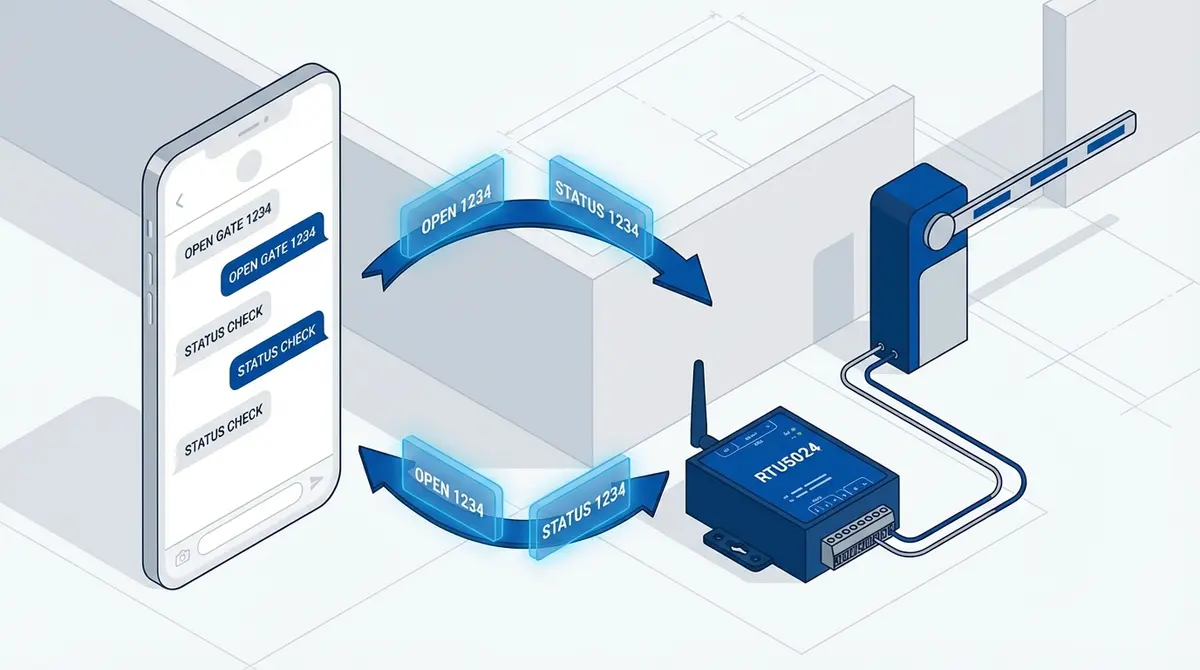
RTU5024 GSM-Toröffner einrichten: Komplettanleitung
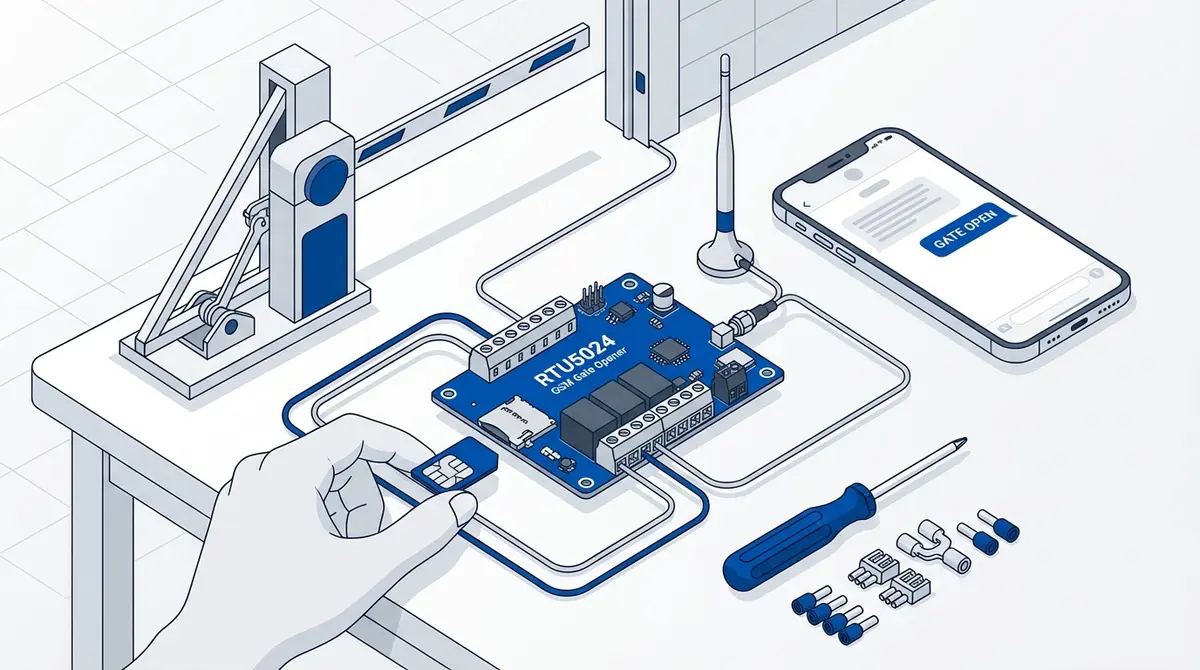
Richten Sie Ihren RTU5024 GSM-Toröffner ein, vom Auspacken bis zum ersten Öffnen. Diese Anleitung behandelt SIM-Karten-Vorbereitung, Relais-Verkabelung, Passwort ändern, Telefonnummern hinzufügen und Testen.
Du hast gerade deinen RTU5024 ausgepackt und starrst auf eine Platine mit Antenne, ein paar Schraubklemmen und eine Anleitung, die sich liest, als wäre sie von einem Komitee übersetzt worden. Du bist nicht allein. Die meisten RTU5024-Besitzer verbringen ihre erste Stunde verwirrt über die Verkabelung, ausgesperrt durch den PIN-Code ihrer SIM-Karte oder fragen sich, warum ihre SMS-Befehle keine Antwort bekommen.
Was ist der RTU5024 GSM-Toröffner?
Der RTU5024 ist ein GSM-basierter Relais-Controller, der Tore, Türen und Schranken per Telefonanruf oder SMS-Befehl über das Mobilfunknetz öffnet. Laut Herstellerdokumentation von King Pigeon (BLIIoT) unterstützt er bis zu 999 autorisierte Telefonnummern, arbeitet mit 9-36V Gleichstrom und ist je nach Variante mit 2G-, 3G- und 4G-LTE-Netzen kompatibel. Mit rund 70% Marktanteil ist der RTU5024 das meistverwendete GSM-Toröffner-Modul.
Das Modul überwacht eingehende Anrufe von autorisierten Nummern. Wenn es einen erkennt, schließt es sein Relais für eine eingestellte Dauer, wodurch das angeschlossene Gerät ausgelöst wird: ein Torantrieb, ein Türöffner, eine Schranke oder ein anderes Gerät an den Relaisklemmen.
Schritt 1: SIM-Karte vorbereiten
Before you touch the RTU5024, get your SIM card ready on a regular phone first. This step prevents the most common setup failure.
What you need: a standard-size SIM card (the large one, not micro or nano) with an active voice and SMS plan. Prepaid SIMs work fine. Data is not required.
Remove the PIN lock
Insert the SIM into a regular phone, go to Settings, then Security, then SIM card lock, and disable the PIN. According to the RTU5024 v1.7 user manual, the module cannot handle SIM PIN prompts. If the PIN is active, the module powers on but never registers on the network.
Verify the SIM works
While the SIM is in your phone, send yourself an SMS and make a call. Confirm both work. Note down the SIM's phone number. You'll need it for every step that follows.
Check network compatibility
If you bought the 2G version (most common), confirm your carrier still operates a 2G (GSM 850/900/1800/1900 MHz) network in your area. Multiple European and North American carriers have shut down their 2G networks. If your carrier no longer supports 2G, you need the 4G LTE variant instead.
Schritt 2: SIM einlegen und Strom anschließen
Power off or disconnect any power source before inserting the SIM card.
- 1.Open the RTU5024 enclosure by removing the screws on the back panel.
- 2.Locate the SIM card slot on the circuit board. Push the SIM card in with the gold contacts facing down and the notched corner going in first. You should hear a click.
- 3.Connect a DC power supply (9-36V) to the V+ and GND terminals. A 12V DC adapter is the most common choice. Make sure the polarity is correct: positive to V+, negative to GND.
- 4.Power on. The POWER LED should light up solid. The SIGNAL LED will blink as it searches for a network, then settle into a slow blink (roughly once every 3 seconds) when registered.
If the SIGNAL LED keeps blinking rapidly (every second), the module is not finding a network. This usually means the SIM PIN is still active, the SIM is not inserted correctly, or there is no compatible network coverage at your location.
Schritt 3: Relais mit dem Tor verbinden
The RTU5024 has one relay output with three terminals: COM (Common), NO (Normally Open), and NC (Normally Closed). For gate openers, you almost always use COM and NO.
| Connection | Default State | When Triggered |
|---|---|---|
| COM + NO | Open (disconnected) | Closes (connected) |
| COM + NC | Closed (connected) | Opens (disconnected) |
Connecting to your gate motor
- 1.Find the gate motor's control board. Look for terminals labeled "push button" or "open" or "start." If you already have a wired wall button, follow those wires to the motor control board.
- 2.Run two wires from the gate motor's button terminals to the RTU5024's COM and NO terminals.
- 3.Secure the wires in the screw terminals. Give each wire a gentle tug to confirm they're held firmly.
According to the RTU5024 datasheet, the relay is rated for 3A at 240VAC. You're switching the control signal, not powering the motor directly.
Schritt 4: Standardpasswort ändern
The factory default password is 1234. According to the RTU5024 manufacturer documentation, you should change this immediately. Anyone who knows the password can add or remove authorized users, change settings, or open your gate via SMS.
Send this SMS to your RTU5024's SIM card number:
1234P5678Replace 1234 with the current password and 5678 with your new 4-digit password. The format is {password}P{new} with no hash delimiters. The module replies with a password changed confirmation.
The RTU5024 password is exactly 4 digits, numbers only. Pick something you'll remember but that isn't obvious.
If you forget your password, press and hold the RESET button on the circuit board for about 10 seconds while powered on. This restores the default password 1234 and erases all settings except stored phone numbers.
Schritt 6: Installation testen
Call the RTU5024's SIM card number from an authorized phone number. The module should detect the call, reject it after one ring (you won't be charged), close the relay for the configured duration, and open your gate.
If the gate doesn't open but the relay clicks
The wiring is correct but the relay close time is too short. The default may be too brief for gate motors. To set the relay time to 5 seconds, send:
1234GOT005#The GOT value is a 3-digit zero-padded number in seconds: GOT005 = 5 seconds, GOT030 = 30 seconds. GOT000 = 0.5s latch pulse. GOT999 keeps the relay on until the next call (toggle mode).
If nothing happens when you call
- 1.Is the SIGNAL LED blinking slowly (network connected)?
- 2.Did you add your number with the correct country code?
- 3.Are all SMS commands typed in UPPERCASE? The RTU5024 only accepts capital letters.
- 4.Is the access mode set to "authorized users only"? Send
1234AUT#to re-enable authorized-only mode, or1234EEto check the device status.
Schritt 7: Optionale Einstellungen konfigurieren
Once the basics work, these optional settings are worth configuring.
Check device status and signal strength
1234EEThe EE command returns the relay state, GSM signal strength, and firmware info. If the signal value is low, reposition the antenna or use an external antenna.
Enable relay action notifications
1234GON11#GateOpen#The GON command configures relay ON notifications. The two digits control who receives the SMS: first digit = slot 001 user (1=yes, 0=no), second digit = caller (1=yes, 0=no). The text after the second # is the custom message content. To disable relay ON notifications, send 1234GON##. To disable relay OFF notifications, send 1234GOFF##.
Restrict to authorized users only
1234AUT#This is the default, but worth confirming. The opposite (1234ALL#) allows any phone number to trigger the relay, which is a security risk.
Häufige Fehler und ihre Lösung
SIM PIN still active
The module powers on, the POWER LED lights up, but the SIGNAL LED blinks rapidly and never stabilizes. Remove the SIM, put it in a phone, disable the PIN lock, and reinsert it.
Commands not in uppercase
Sending 1234p5678 does nothing. The RTU5024 only processes commands in capital letters. Check that your keyboard is set to uppercase and auto-correct isn't changing your input.
Missing country code
You added your number as 07912345678 instead of +447912345678. The module stores numbers in international format. Without the country code, your call won't match.
Wrong SIM card size
The RTU5024 uses a standard (full-size) SIM card. If you only have a micro or nano SIM, use an adapter. Make sure the adapter sits flush and the gold contacts align with the reader.
Relay time too short
The default pulse may not be long enough. Increase with the GOT command (3-digit zero-padded seconds). Most gate motors work well with GOT003 (3 seconds) to GOT005 (5 seconds).
Wiring COM to NC instead of NO
If your gate stays open and only closes when you call, you've wired to NC (Normally Closed) instead of NO (Normally Open). Swap the wire from NC to NO.
SMS-Setup überspringen mit GateOpener
Every SMS command in this guide (password changes, user management, relay timing, signal checks) becomes a single tap in GateOpener. Select your RTU5024 from the module list, and the app handles the command syntax, the password insertion, and the error checking for you.
- Visual interface for all RTU5024 commands: no memorizing codes
- One-tap gate opening via phone call, directly from the app
- Multi-gate support: manage RTU5024, Callny, and 30+ modules in one place
- EUR 5.99 one-time, no subscription, no cloud: all data stays on your phone
Häufig gestellte Fragen
What SIM card does the RTU5024 need?
The RTU5024 uses a standard-size SIM card (25mm x 15mm). It needs an active voice and SMS plan. Data is not required. Remove the PIN lock before inserting. If you only have a micro or nano SIM, use an adapter.
How many phone numbers can the RTU5024 store?
According to the manufacturer specifications, the RTU5024 supports up to 999 authorized phone numbers. For SMS-based management, slots 001-200 are available directly.
Can I use the RTU5024 with a 4G SIM card?
The original RTU5024 is a 2G device requiring a carrier with an active GSM network. If your carrier has shut down 2G, you need the RTU5024 4G variant, which supports LTE and is backward compatible with 2G/3G.
What happens if I forget the password?
Press and hold the RESET button for about 10 seconds while powered on. This restores the default password 1234 and erases settings. Stored phone numbers are retained.
Does the RTU5024 work during power outages?
No built-in battery. If power is lost, the module shuts down and the relay releases. For uninterrupted operation, connect a 12V UPS or battery backup to the V+ and GND terminals.
How far can the RTU5024 be from the gate motor?
The RTU5024 connects to the gate motor via a simple two-wire cable. Standard 0.5mm or 0.75mm cable can run 50-100 meters without issue. The module needs cellular signal, not proximity to the motor.
Quellen
Manufacturer Documentation
- RTU5024 User Manual v1.7 (PDF) — King Pigeon / BLIIoT official user manual
- RTU5024 Product Page — BLIIoT product specifications
- RTU5024 Datasheet — IOT Solution technical specifications
Technical Standards
- E.164 International Telephone Numbering — ITU-T standard for international phone number format
Schluss mit SMS-Befehlen?
GateOpener ersetzt kryptische Codes durch eine klare Oberfläche. Eine App für jedes GSM-Tormodul. Kein Abo, kein Konto nötig.